A checklist you can use together
Take a weekend picnic: add what you need, then check each item when it is ready. Someone opening the list in another browser sees the changes too. The same idea works for shopping or event preparation.
In this example, everyone with the link and shared password can view, add, complete, and delete items. There are no read-only or individual roles. Start with non-sensitive practice data.
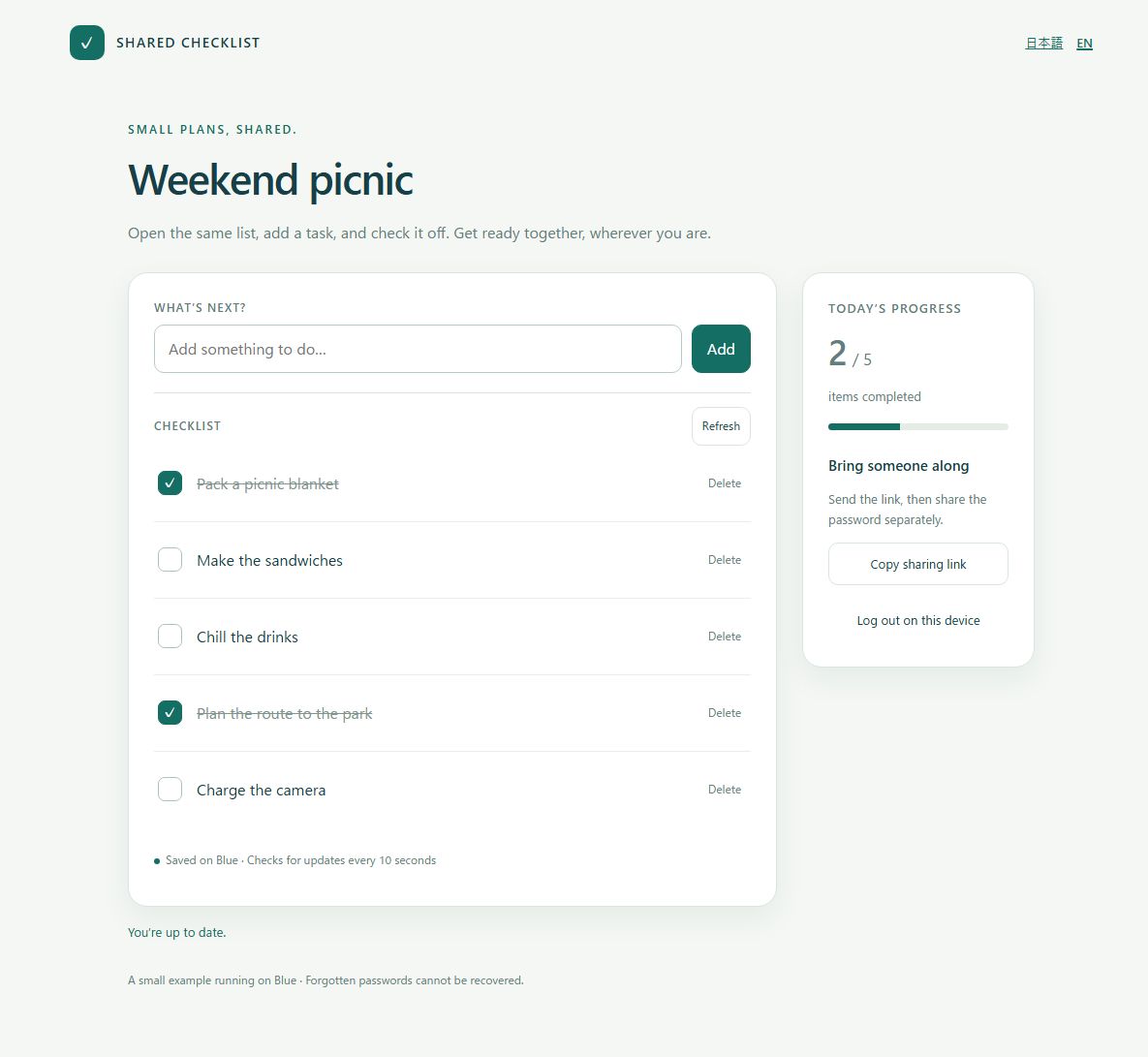
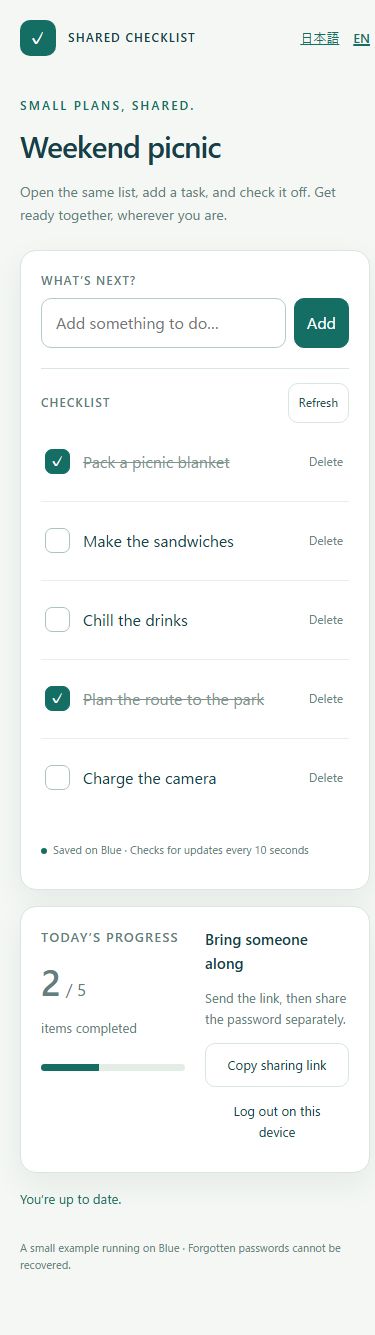
Screenshots of the working example. The mobile image was captured in a browser set to a 390px viewport width.
1. Ask your AI to build it, then try it locally
Open an empty “blue-checklist” folder in Codex or Claude Code on your PC. See the getting-started guide for setup and the API publishing guide for your first deployment. Using your external AI tool does not consume Blue AI Build generation credits.
Follow the startup instructions. Add “Pack a picnic blanket,” check it, uncheck it, and delete it. Add a few more items, then confirm they survive a page reload and an app restart.
Start with the exact example from this article
Extract it into an empty folder and ask your AI to review, run, and test it locally. It needs Python 3.12 or later. The two files, app.py and index.html, use no additional libraries. The default PORT is 8000. Keep the generated data folder out of your deployment ZIP.
2. Check the storage, then publish on Blue
Browser localStorage alone cannot share data with another device. This example saves to SQLite on Blue. Keep the database in /workspace/data, which survives updates of the same app, separate from code that deployment replaces.
You can upload the ZIP through the console. To let your AI publish it, first follow deployment preparation and API key setup. Never put your API key in a chat message or the checklist’s password field.
Review the details and tell your AI to publish. At the public URL, create a new list and add practice items. Your local database was excluded from the upload, so local items do not appear automatically.
noindex discourages search indexing; it is not authentication. The example’s own password protects list contents. This small-group teaching app has no password recovery, audit history, or individual permissions.
4. Update at the same URL and check the saved data
Add three items and complete one. Ask for a small display improvement, such as a completed-item count. Specify an update to the previous app ID, rather than a new app.
The update succeeds when the URL and list ID stay the same and the three items retain their completion state. Open the other browser and add an item to confirm sharing still works. Persistent storage does not replace backups: app deletion and accidental data deletion need separate recovery arrangements.
When something does not work
- Items disappear after updating: ask your AI to check the app ID, /workspace/data location, and startup initialization. Stop writes and check the original storage and backups first.
- Another device does not see the list: check the sharing URL includes the list ID and use the correct password. Try “Refresh.” Keep passwords out of chat even when debugging.
- The app does not start: check it is detected as Python and listens on PORT. index.html alone cannot save data; include app.py at the ZIP root too.
- Requests are temporarily limited: wait about a minute and retry. This example allows 32 lists per app and 200 items per list. Login sessions expire after 12 hours.
For Google spreadsheets or email integration, use the Google Sheets guide. This checklist needs no Google account or external API.